
DBA PARK may earn a commission from purchases through links in this article, at no extra cost to you.
1. Introduction
Always Encrypted is a SQL Server feature that encrypts sensitive data between your application and the database engine, protecting it even from database administrators. This article walks through the end-to-end flow using PowerShell and SSMS—from creating the certificate to connecting, inserting data, and reading it back.2. Create the Database
CREATE DATABASE testdb COLLATE Latin1_General_BIN2;
GO
3. Create the Column Master Key (CMK)
3.1 Create the certificate (on the client)
$cert = New-SelfSignedCertificate `
    -Subject "CN=AE_LocalCert" `
    -CertStoreLocation "Cert:\LocalMachine\My"

$cert.Thumbprint
LocalMachine\My store.
You’ll use this certificate’s thumbprint in the next step.
Tip: When you copy the thumbprint, remove any spaces or invisible characters. Stick to uppercase hex without spaces to avoid “certificate not found” errors.
3.2 Create the CMK (T-SQL)
USE testdb;
GO
CREATE COLUMN MASTER KEY CMK_LocalCert
WITH (
    KEY_STORE_PROVIDER_NAME = N'MSSQL_CERTIFICATE_STORE',
    KEY_PATH = N'LocalMachine/My/<Thumbprint>'
);
GO
4. Create the Column Encryption Key (CEK) using SSMS GUI
You can create the Column Encryption Key (CEK) directly from the SSMS GUI:- Connect to the target database (e.g.,
testdb) in SSMS. - In Object Explorer, right-click Security → Always Encrypted Keys → Column Encryption Keys, then select New Column Encryption Key…
- Enter
CEKas the name. - Select
CMK_LocalCertas the Column Master Key. - Click OK to create the CEK.
ENCRYPTED_VALUE for you; you don’t need to craft it manually.
5. Create a Table with Encrypted Columns
USE testdb;
GO
CREATE TABLE dbo.Customers (
    CustomerId int PRIMARY KEY,
    SSN char(11) COLLATE Latin1_General_BIN2
        ENCRYPTED WITH (
          COLUMN_ENCRYPTION_KEY = CEK,
          ENCRYPTION_TYPE = DETERMINISTIC,
          ALGORITHM = 'AEAD_AES_256_CBC_HMAC_SHA_256'
        ) NOT NULL,
    CreditCardNumber nvarchar(25)
        ENCRYPTED WITH (
          COLUMN_ENCRYPTION_KEY = CEK,
          ENCRYPTION_TYPE = RANDOMIZED,
          ALGORITHM = 'AEAD_AES_256_CBC_HMAC_SHA_256'
        ) NULL
);
GO
6. Insert Data with PowerShell (Column Encryption ON)
$server = "serverName"
$database = "DBName"
$connStr = "Driver={ODBC Driver 17 for SQL Server};Server=$server;Database=$database;Trusted_Connection=Yes;Column Encryption Setting=Enabled;"

$insertQuery = @"
INSERT INTO dbo.Customers (CustomerId, SSN, CreditCardNumber)
VALUES (?, ?, ?)
"@

$conn = New-Object System.Data.Odbc.OdbcConnection($connStr)
$conn.Open()

$cmd = $conn.CreateCommand()
$cmd.CommandText = $insertQuery

$cmd.Parameters.Add([System.Data.Odbc.OdbcType]::Int).Value = 2001
$cmd.Parameters.Add([System.Data.Odbc.OdbcType]::VarChar, 11).Value = "123-45-6789"
$cmd.Parameters.Add([System.Data.Odbc.OdbcType]::NVarChar, 25).Value = "4111111111111111"

$cmd.ExecuteNonQuery()
$conn.Close()
?) and ensure the parameter types/lengths match the column definitions exactly.
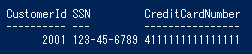
7. Read Data with PowerShell (Column Encryption ON)
$server = "serverName"
$database = "DBName"
$connStr = "Driver={ODBC Driver 17 for SQL Server};Server=$server;Database=$database;Trusted_Connection=Yes;Column Encryption Setting=Enabled;"

$selectQuery = "SELECT CustomerId, SSN, CreditCardNumber FROM dbo.Customers"

$conn = New-Object System.Data.Odbc.OdbcConnection($connStr)
$conn.Open()

$cmd = $conn.CreateCommand()
$cmd.CommandText = $selectQuery

$reader = $cmd.ExecuteReader()
while ($reader.Read()) {
    Write-Host "ID: $($reader[0]), SSN: $($reader[1]), CC: $($reader[2])"
}
$conn.Close()
8. Read Data with PowerShell (Column Encryption OFF)
$server = "serverName"
$database = "DBName"
$connStr = "Driver={ODBC Driver 17 for SQL Server};Server=$server;Database=$database;Trusted_Connection=Yes;Column Encryption Setting=Disabled;"

$selectQuery = "SELECT CustomerId, SSN, CreditCardNumber FROM dbo.Customers"

$conn = New-Object System.Data.Odbc.OdbcConnection($connStr)
$conn.Open()

$cmd = $conn.CreateCommand()
$cmd.CommandText = $selectQuery

$reader = $cmd.ExecuteReader()
while ($reader.Read()) {
    Write-Host "ID: $($reader[0]), SSN: $($reader[1]), CC: $($reader[2])"
}
$conn.Close()
0x01AB…) because the driver is not decrypting them in this session.

9. Notes & Limitations
- The client must have access to the certificate’s private key to decrypt Always Encrypted columns.
- For deterministic string columns, make sure collations are aligned (e.g.,
Latin1_General_BIN2in this guide). - Some SSMS versions/settings may trip you up when inserting into encrypted columns; using PowerShell or application code is often more predictable.
- Encrypted columns have feature limits (e.g.,
LIKEpattern matches aren’t supported; server-side decryption isn’t available). - Nice to have: Also enable TLS for the connection (e.g.,
Encrypt=Yes;TrustServerCertificate=No;) to protect data in transit in addition to Always Encrypted. - Diagnostics: If something doesn’t behave as expected, run
sp_describe_parameter_encryptionagainst your statement to verify how the driver intends to encrypt parameters.
Continue learning: To place column encryption in a broader database security plan, browse Udemy and search for SQL Server administration courses with exercises on access control, authentication, and data protection. For hands-on practice with SQL Server queries and database fundamentals, explore DataCamp.