
DBA PARK may earn a commission from purchases through links in this article, at no extra cost to you.
SQL Server Error 18456 means authentication failed, but the client message intentionally hides the exact reason. Read the matching SQL Server error-log entry and use its State code to distinguish an invalid login, password failure, disabled account, unavailable target database, or authentication-mode mismatch.
Introduction
When using SQL Server, you will likely encounter Error 18456: “Login failed for user” at least once. This error is not just a simple “login failure”; the actual cause differs depending on the State code. In this post, we outline how to check the SQL Server error logs, what the key States mean, and how to resolve the issue.
Quick State Guide
| State | Likely cause | First check |
|---|---|---|
| 2 or 5 | The login name is not valid. | Verify the exact login, server, and instance in the connection string. |
| 6 | A Windows login name was used with SQL Server Authentication. | Select the intended authentication method. |
| 7 | The login is disabled and the password is incorrect. | Confirm status and reset credentials only through the approved account process. |
| 8 | The password is incorrect. | Verify the password source without logging or exposing it. |
| 38 | The requested database could not be opened. | Test with master, then verify the database name, state, and user mapping. |
| 58 | The server accepts Windows Authentication only. | Use Windows Authentication or deliberately change server authentication mode after review. |
Table of Contents
- Introduction
- Error message and the meaning of State
- How to check from SQL Server logs
- How to fix by State
- State 1 — Login failed but you don’t have permission to view the State
- State 2 / 5 — Invalid user name (login does not exist)
- State 6 — Invalid user name (login does not exist)
- State 7 — Login is disabled
- State 8 — Password mismatch
- State 38 — Incorrect target database at connect time
- State 58 — SQL Server is configured to accept only Windows Authentication
Error message and the meaning of State
When connecting with SSMS, you may see an error message like the following.
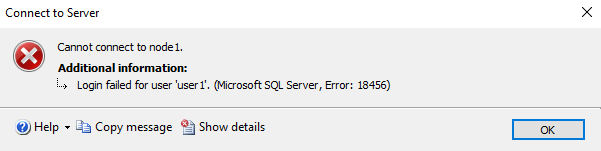
By selecting “Show details,” you can check the specific State. Login-related errors are also recorded in the SQL Server Error Log on the server side.
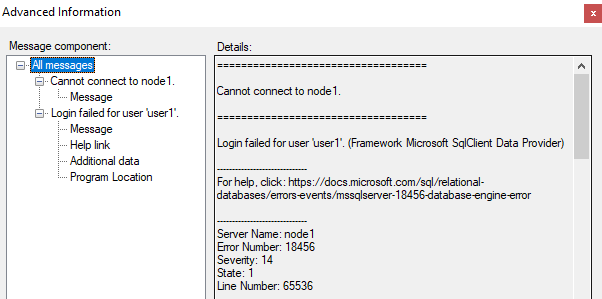
The meanings of representative States are as follows (partial list):
- State 1 – Login failed, but you don’t have permission to view the State details
- State 2 / 5 – Invalid user name (login does not exist)
- State 6 – A Windows login name was used with SQL Server Authentication
- State 7 – Login is disabled
- State 8 – Incorrect password
- State 11 / 12 – Login is correct but has no server-level access
- State 18 – Password expired / must be changed
- State 38 / 46 – Default database does not exist
- State 58 – SQL Server is configured to accept only Windows Authentication
- State 126 – The specified database does not exist
For the complete list of States, see the official Microsoft documentation.
How to check using SQL Server logs
In SSMS, open Management > SQL Server Logs to check the error details.
Also, by running the following query, you can verify the path of the error log file. By opening the ERRORLOG file at the confirmed path in a text editor, you can also review the error.
EXEC xp_readerrorlog 0, 1, N'Logging SQL Server messages in file';

How to fix by State
State 1 — Login failed but you don’t have permission to view the State
This State is recorded on the application side. A different State is actually recorded in the SQL Server error log, so first check the correct State from the SQL Server logs and then proceed with the fix.
State 2 / 5 – Invalid user name (login does not exist)
This State is recorded when a non-existent login is used. For example, if you try to connect to SQL Server with a login named “User100” that does not exist, you can confirm a message like the following is recorded.
errorlog output example
Error: 18456, Severity: 14, State: 5.
Login failed for user 'user100'. Reason: Could not find a login matching the name provided. [CLIENT: <local machine>]
How to fix
- Register the login in SQL Server. (Create a Login – SQL Server | Microsoft Learn)
- The login you are using is incorrect, so use a different login.
State 6 – A Windows login name was used with SQL Server Authentication
This message is recorded when a Windows-authenticated login attempts to authenticate using SQL Server Authentication.
errorlog output example
Error: 18456, Severity: 14, State: 6.
Login failed for user 'domain\userName'. Reason: Attempting to use an NT account name with SQL Server Authentication. [CLIENT: <local machine>]
How to fix
- Log in using Windows Authentication.
State 7 – Login is disabled
This State is recorded when the login itself exists, but the login is not enabled.
errorlog output example
Error: 18456, Severity: 14, State: 7.
Login failed for user 'sa'. Reason: An error occurred while evaluating the password. [CLIENT: <local machine>]
How to fix
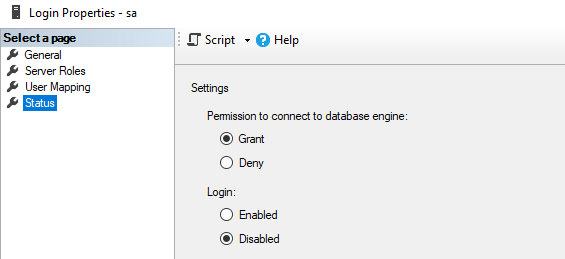
- Enable the login. In SSMS, right-click the login, open Properties, and under Status switch Login to Enabled.
State 8 — Password mismatch
This State is recorded when the password is incorrect.
errorlog output example
Error: 18456, Severity: 14, State: 8.
Login failed for user 'xxx'. Reason: Password did not match that for the login provided. [CLIENT: <local machine>]
How to fix
- Use the correct password.
- If unknown, use another login and change the password for the target login.
State 38 — Incorrect target database at connect time
In SQL Server you can specify which database to connect to at login. You can set it in advance per login, or include it in the connection string. If the database you attempt to connect to is offline or otherwise inaccessible, this message is recorded.
errorlog output example
Error: 18456, Severity: 14, State: 38.
Login failed for user 'user1'. Reason: Failed to open the explicitly specified database 'xxx'. [CLIENT: <local machine>]
How to fix
- Connect to SQL Server and check the status of the target database.
- When connecting to SQL Server, make sure an appropriate database is specified.
State 58 — SQL Server is configured to accept only Windows Authentication
This State is recorded when SQL Server cannot use SQL Server Authentication. By default, SQL Server permits only Windows Authentication; to use SQL Server Authentication, you must configure Mixed Mode during installation or change the setting after installation.
errorlog output example
Error: 18456, Severity: 14, State: 58.
Login failed for user 'user1'. Reason: An attempt to login using SQL authentication failed. Server is configured for Integrated authentication only. [CLIENT: <local machine>]
How to fix
- Allow SQL Server Authentication. (Change Server Authentication Mode – SQL Server | Microsoft Learn)
Continue learning: To understand the security model behind login failures, browse Udemy and search for SQL Server administration courses with exercises on authentication, login-to-user mapping, and permissions. For hands-on practice with SQL Server queries and database fundamentals, explore DataCamp.
Related Connection Guides
- Fix “The target principal name is incorrect”
- Configure Encrypted SQL Server Connections
- Essential SQL Server DMV Queries