
DBA PARK may earn a commission from purchases through links in this article, at no extra cost to you.
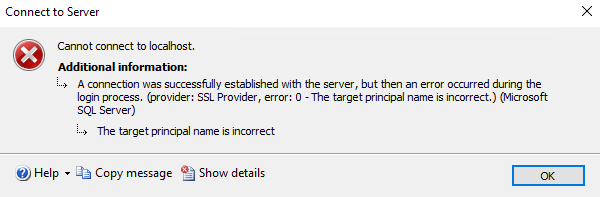
When connecting to SQL Server over encrypted connections, you may encounter the following error:
A connection was successfully established with the server, but then an error occurred during the login process.
(provider: SSL Provider, error: 0 - The target principal name is incorrect.) (Microsoft SQL Server)

The target principal name is incorrect.
Direct answer: this error usually means the server name used by the client does not match a DNS name in the SQL Server certificate. Compare the exact value used in Server= with the certificate Subject Alternative Name (SAN). Then either connect with a matching DNS name, reissue the certificate with the required name, or—when the driver supports it—set HostNameInCertificate to a name already present in the certificate.
Quick diagnosis: identify the mismatch first
| Check | What to compare | Typical fix |
|---|---|---|
| Connection target | The exact hostname, alias, AG listener, FCI virtual name, or IP used by the application | Use a DNS name listed in the certificate SAN |
| Certificate identity | Subject Alternative Name entries on the certificate bound to SQL Server | Reissue the certificate with every required client-facing DNS name |
| AG or FCI | The listener or virtual server name—not only the physical node names | Add the listener/virtual name to SAN and provision the certificate on the required replicas or nodes |
| Trust error instead | If the message says the certificate chain is not trusted, the hostname can already be correct | Install the issuing CA chain on the client; do not treat it as a name-mismatch problem |
Reproduce the failure with the same server name and encryption settings used by the application. If connecting by FQDN works but an alias, listener, short name, or IP fails, that difference is strong evidence of a certificate-name mismatch.
1. What is an encrypted connection in SQL Server?
- Encrypts traffic between the client and SQL Server using TLS.
- By default, older client drivers only encrypt sensitive parts (like credentials). Newer Microsoft ODBC/OLE DB drivers default to
Encrypt=True, meaning the entire TDS session is encrypted unless configured otherwise. - To properly validate the server’s identity, SQL Server must present a TLS certificate whose Subject/Subject Alternative Name (SAN) matches the connection string the client used to connect.
- If no certificate is configured, SQL Server can create and use a self-signed certificate, but clients will only accept it if they are configured to
TrustServerCertificate=True.
For a deeper dive into encrypted connections in SQL Server, see: Encrypted connections in SQL Server.
2. Why does “The target principal name is incorrect” occur?
- Name mismatch: The certificate presented by SQL Server must include (in SAN or Subject CN) the exact DNS name that the client uses in its connection string. If you connect using
sql01.contoso.localbut the certificate only containssql01, validation fails. - Connecting by IP: If you connect via IP address, the certificate must include that IP in SAN; otherwise validation fails (prefer DNS where possible).
- Listener names (AG/FCI): For Availability Groups or Failover Cluster Instances, the certificate must include the listener or virtual network name in SAN, not just the node’s host name.
- Different but related TLS error: An untrusted issuing CA usually produces a certificate-chain trust error rather than “The target principal name is incorrect.” Check the exact client error before changing SAN entries.
3. How to verify your certificate configuration
Use SQL Server Configuration Manager and the Windows certificate console to check which certificate is bound and what names it contains:
- Open SQL Server Configuration Manager.
- Go to SQL Server Network Configuration → Protocols for <InstanceName>, right-click and choose Properties.
- Open the Certificate tab and confirm which certificate is selected.
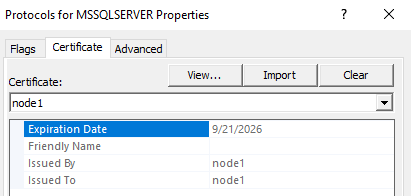
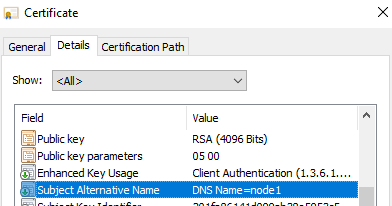
Then inspect the certificate’s Subject Alternative Name (SAN):
- Press Win + R, run
certlm.msc(Computer account). - Locate the certificate in Personal → Certificates, right-click → Open.
- On the Details tab, check Subject Alternative Name and verify it includes every DNS name (and IPs if you connect by IP) that clients use.
4. Fixes
- Re-issue or replace the certificate with correct SAN entries.
Include all names clients use: FQDN of the instance host, AG listener/cluster name, any aliases, and (if truly necessary) IP addresses. - Update the client connection string to a name that exists in the certificate.
Use the FQDN that matches the SAN. With newer drivers/SSMS you can also set “Host name in certificate” (orHostNameInCertificate) if your certificate uses a specific name (e.g., the AG listener) while yourServer=points elsewhere. - Temporary workaround:
TrustServerCertificate=True.
This bypasses CA and name validation and will encrypt the channel, but it does not authenticate the server and is vulnerable to MITM. Use only as a short-term workaround while fixing certificates.
5. Creating a server certificate with SAN (example)
For lab or internal CA scenarios, you can generate a certificate with the required DNS names. Example (PowerShell):
New-SelfSignedCertificate `
  -Type SSLServerAuthentication `
  -Subject "CN=sql01.contoso.local" `
  -DnsName "sql01.contoso.local","ag-listener.contoso.local","sql01" `
  -KeyLength 4096 `
  -KeySpec   KeyExchange `
  -HashAlgorithm SHA256
After creating/importing the certificate, bind it in SQL Server Configuration Manager (Protocols → Properties → Certificate) and restart the SQL Server service.
Official references
Continue learning: To build a broader foundation for secure database connections, browse Udemy and search for SQL Server administration courses with exercises on instance configuration, authentication, and security. For hands-on practice with SQL Server queries and database fundamentals, explore DataCamp.