
SQL Server Error 8152 – String or binary data would be truncated
Many SQL Server developers have seen the message String or binary data would be truncated. but had no idea which column or value caused it. In this post, we’ll look at SQL Server Error 8152, why it happens, how the new detailed error (Msg 2628) in newer versions helps, and some practical troubleshooting and prevention tips.
1. What is SQL Server Error 8152?
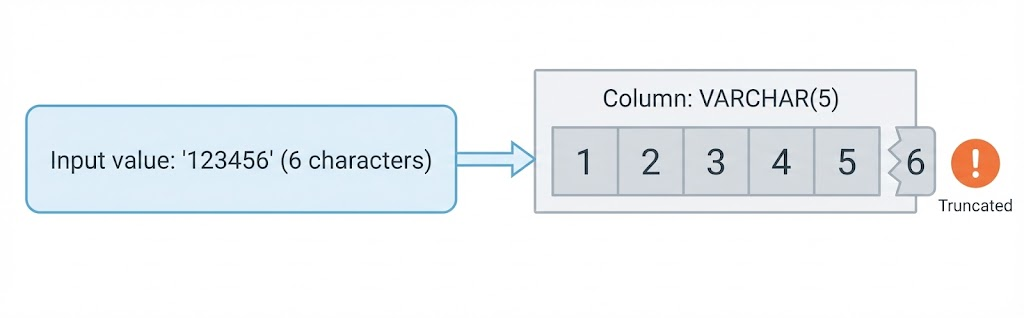
Error 8152 is raised when SQL Server needs to store a value in a column, but the value does not fit into the column definition. In other words, SQL Server is about to cut off (truncate) part of the data to make it fit, and it refuses to do so silently.
Typical error messages:
Msg 8152, Level 16, State xx, Line xx
String or binary data would be truncated.
The statement has been terminated.- In one sentence: this is a data truncation error that occurs when the value being inserted or updated does not fit into the target column’s data type or length. SQL Server will raise an error and not write the truncated row.
2. Why “String or binary data would be truncated” Happens
There are several common patterns that cause Error 8152:
- Inserting too many characters into a fixed-length column
For example, a column is defined asVARCHAR(10)but you try to insert 11 or more characters (similarly withCHAR,NVARCHAR, etc.). - Incorrect
NVARCHARlength definitions
DefiningNVARCHAR(10)but assuming it means “10 bytes” instead of “10 Unicode characters,” or simply choosing a length that is too short compared to real-world data. - Source and destination schema mismatch in ETL
Classic example: a source column holds a full credit card number or long description, but the destination column is shorter (for example, sourceVARCHAR(50), destinationVARCHAR(20)). SELECT INTO/INSERT … SELECTwith smaller target columns
When you copy data from one table to another, the target column may have a smaller size than the source column, causing truncation.- Implicit conversions (for example,
NUMERIC→VARCHAR)
When SQL Server implicitly converts numeric or other types to a character type with insufficient length, the string representation does not fit.
Here is a very small repro that demonstrates the error:
CREATE DATABASE TestTruncation;
GO

USE TestTruncation;
GO

CREATE TABLE dbo.TestTruncation (
    Col1 VARCHAR(5)
);
GO

INSERT INTO dbo.TestTruncation (Col1)
VALUES ('123456');  -- 6 characters, but the column only allows 5
This will raise Error 8152 because the value '123456' is longer than the defined length of Col1.
3. Why It Was So Hard to Troubleshoot Before
- The original error message does not tell you which column (or which value) caused the problem.
- In ETL workloads with many columns and many rows, finding the “offending” column/value could be very painful.
- As a result, people often had to:
- Comment out an
INSERTorUPDATEand add columns one by one until the error appears. - Copy data into a temporary table and run
LEN()orDATALENGTH()on each column to find rows that exceed the target length.
These approaches work, but they are slow and tedious.
- Comment out an
4. New Detailed Message (Msg 2628) in SQL Server 2019 and Later
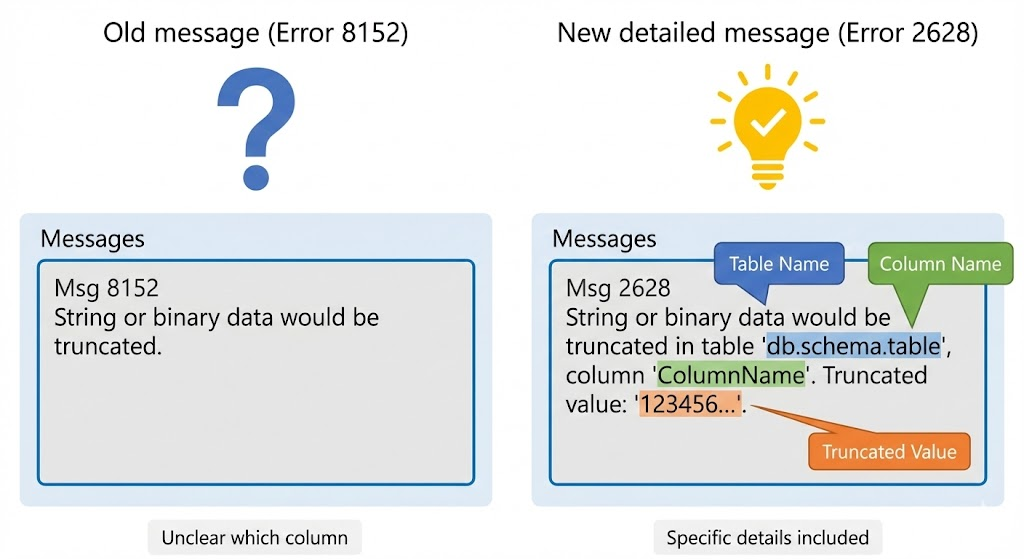
To make troubleshooting easier, newer versions of SQL Server can raise a more detailed error message, Msg 2628, instead of the old Msg 8152.
- SQL Server 2019 and newer builds can expose this detailed message by defaul, and it was backported to SQL Server 2017 CU12 and SQL Server 2016 SP2 CU6 as an optional improvement.
Old behavior (classic message):
Msg 8152, Level 16, State 14, Line 12
String or binary data would be truncated.
The statement has been terminated.
New behavior (detailed message, Msg 2628):
Msg 2628, Level 16, State 1, Line 12
String or binary data would be truncated in table 'TestTruncation.dbo.TestTruncation', column 'Col1'. Truncated value: '12345'.
The statement has been terminated.- With Msg 2628 you now get the table and column name that caused the truncation.
This makes troubleshooting dramatically easier compared to the classic 8152 message.
5. How to Enable the New Error Message (Trace Flag 460)
On some versions and builds, you need to enable a trace flag to get the detailed Msg 2628 message instead of Msg 8152.
- From SQL Server 2019 onwards, the detailed message can be enabled by default.
- For SQL Server 2017 CU12 and SQL Server 2016 SP2 CU6, you can enable Trace Flag 460 to get Msg 2628 instead of Msg 8152.
- Example: enable it at the server level:
-- Enable trace flag 460 globally (for all sessions)
-- (Alternatively, add -T460 to the SQL Server startup parameters.)
DBCC TRACEON(460, -1);
GO

-- Disable trace flag 460 globally
DBCC TRACEOFF(460, -1);
GO
- You can also enable it only for your current session:
DBCC TRACEON(460);
-- Run the statement that raises Error 8152
DBCC TRACEOFF(460);
6. What to Do When Error 8152 Occurs (Troubleshooting Steps)
Here is a practical checklist you can follow when you encounter Error 8152.
- Identify what operation failed
- Was it an
INSERT,UPDATE, orMERGE? - Which table and which part of the statement is likely involved?
- Was it an
- Check the target column definitions
- Use
sys.columnsorINFORMATION_SCHEMA.COLUMNSto confirm the data type and length of each target column.
SELECT name, max_length, system_type_id FROM sys.columns WHERE object_id = OBJECT_ID('dbo.TestTruncation'); SELECT TABLE_NAME, COLUMN_NAME, DATA_TYPE, CHARACTER_MAXIMUM_LENGTH FROM INFORMATION_SCHEMA.COLUMNS WHERE TABLE_NAME = 'TestTruncation'; - Use
- Check the length of the input values
- Use
LEN()andDATALENGTH()to see how long the actual values are. - If you are doing
INSERT … SELECT, inspect the source columns to find rows where the length exceeds the target definition.
- Use
- If possible, reproduce the issue with SQL Server 2019+ or Trace Flag 460
- Enable the detailed message (Msg 2628) and re-run the statement.
- Use the information in the message (column name and first 100 characters of the value) to locate the problematic column and data.
- Choose a remediation pattern
- Increase the column size (for example,
VARCHAR(50)→VARCHAR(100)) when the business requirement allows longer values. - Remove unnecessary characters such as trailing spaces or overly aggressive string concatenations.
- Validate or truncate on the application side before sending data to SQL Server.
- In ETL processes, redirect “too long” rows to a log or error table so they can be reviewed and fixed without breaking the whole batch.
- Increase the column size (for example,
7. Best Practices to Avoid Error 8152
- Schema design
- Look at real sample data when deciding column lengths instead of guessing.
- Avoid definitions that are “just barely enough.” Leave some margin for future changes.
- ETL processes
- Add a step that checks lengths with
LEN()before loading into the destination. - Log rows that exceed the maximum length instead of letting the whole load fail.
- Add a step that checks lengths with
- Applications and APIs
- Match the UI field’s maximum length to the database definition (for example, a text box with
maxlength="50"for aVARCHAR(50)column). - Validate and normalize input in the API or application layer before sending it to SQL Server.
- Match the UI field’s maximum length to the database definition (for example, a text box with
8. Summary
To wrap up:
- Error 8152 is a classic truncation error that means “the value does not fit into the target column.”
- Newer versions and builds of SQL Server can raise Msg 2628, which shows the table, column name, and the beginning of the truncated value, making troubleshooting much easier.
- The root cause is always a mismatch between column definitions and actual data, so the key actions are:
- Review and adjust column definitions when appropriate.
- Clean and validate data in applications and ETL processes.
- Leverage the detailed message via Trace Flag 460 or SQL Server 2019+ features to quickly locate the problematic column and value.
Once you understand these patterns, Error 8152 becomes much easier to diagnose and fix.