
DBA PARK may earn a commission from purchases through links in this article, at no extra cost to you.
Welcome to No.5 of our SQL Server series. Now we tackle one of the most critical aspects of database administration: Security.
SQL Server security is powerful, but it can be complex. It involves multiple layers: Authentication (logins), Authorization (users & roles), and Permissions (GRANT/DENY/REVOKE). In this guide, we walk through the full security hierarchy and then move into practical topics like permission troubleshooting and stored procedure security patterns.
Table of Contents
STEP 1. Overview: The 3 Security Gates
1.1 The Security Hierarchy
To access data in SQL Server, a user must pass through three security gates. If any gate is locked, access is denied.
Security Flow:
1. [Server Level]   Authentication  -> "Login" (Do you have a key to the building?)
       ↓
2. [Database Level] Authorization   -> "User"  (Do you have a key to this specific office?)
       ↓
3. [Object Level]   Permissions     -> "Table" (Are you allowed to open this file cabinet?)
1.2 Setup: sampleDB
Ensure the sample database exists for our exercises.
USE master;
GO
IF NOT EXISTS (SELECT * FROM sys.databases WHERE name = 'sampleDB')
    CREATE DATABASE sampleDB;
GO
STEP 2. Authentication (Server Level)
2.1 Windows vs SQL Server Authentication
- Windows Authentication: Uses Active Directory (or local Windows) credentials. No separate password management in SQL Server.
- SQL Server Authentication: Managed internally by SQL Server. Used for legacy apps or non-Windows clients, or when AD integration is not available.
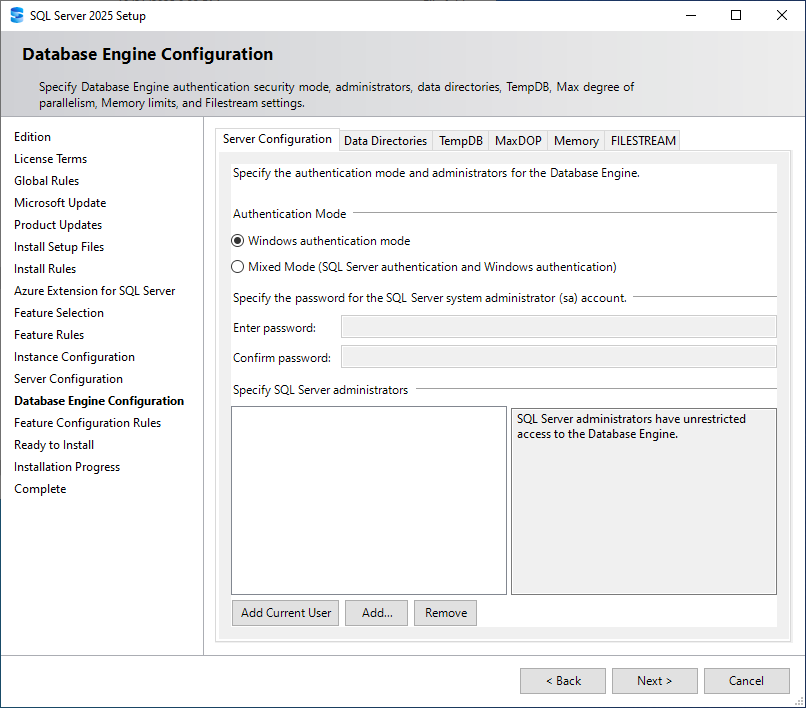
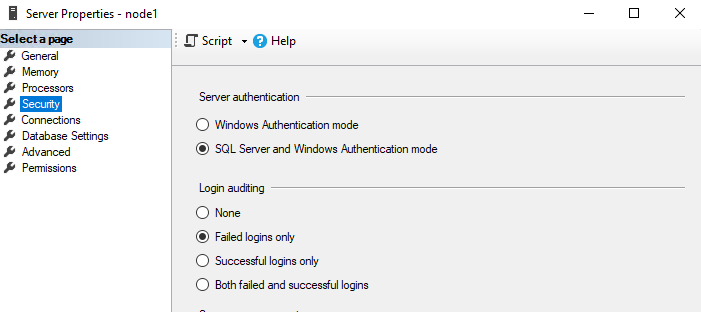
By default, Windows Authentication is enabled. SQL Server Authentication is optional.
You can enable SQL Server Authentication during installation, or enable it later in server settings. If you enable it after installation, you must restart the SQL Server service.
Installation screen:
After installing (SSMS server properties):
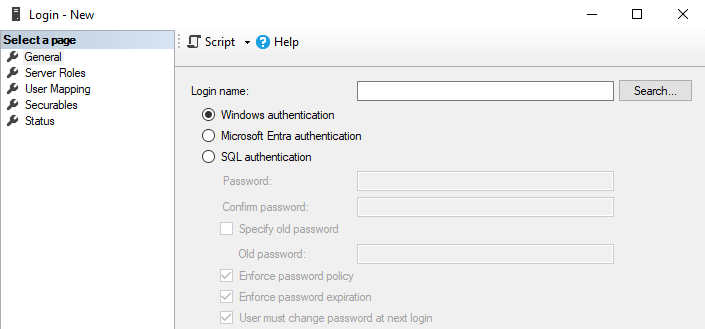
2.2 Creating Logins (Windows & SQL)
You can create logins using either T-SQL or SSMS (GUI).
T-SQL:
USE master;
GO

-- 1. Create a Windows Login
-- (Replace [ComputerName\User] with your actual Windows user)
CREATE LOGIN [MyPC\MyUser] FROM WINDOWS;

-- 2. Create a SQL Server Login
-- NOTE: This is a sample password for demo only.
CREATE LOGIN AppUserLogin
WITH PASSWORD = 'StrongPassword123!';
GO
SSMS (GUI): Create a Windows login (Windows Authentication) or a SQL login (SQL Server Authentication).
2.3 Enforcing Password Policies
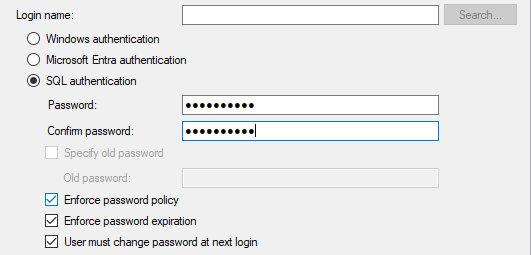
For SQL Server logins, you can enforce the operating system (Windows Server) password policies using CHECK_POLICY and CHECK_EXPIRATION.
- CHECK_POLICY: Enforces password complexity and account lockout settings defined in Windows (for example, via Local Security Policy or domain policy).
- CHECK_EXPIRATION: Enforces password aging (for example, must change every 90 days).
CHECK_POLICY includes the following options (via Windows policy settings):
- Account lockout policy
– Lockout threshold (failed attempts)
– Lockout duration
– Reset account lockout counter after - Password complexity rules
– Password must not contain the user name (or significant parts of it)
– Must meet complexity requirements (uppercase/lowercase/digit/special, etc.) - Minimum password length
– Example: password must be 8 characters or longer (depends on your Windows/Domain policy)
-- Create a login with strict policy enforcement
CREATE LOGIN SecureUser
WITH PASSWORD = 'ComplexPassword!2025',
     CHECK_POLICY = ON,
     CHECK_EXPIRATION = ON;
GO
SSMS (GUI): A login with strict policy enforcement
2.4 The ‘sa’ Account
The sa account is the built-in System Administrator. It bypasses permission checks. If you enable SQL Server Authentication during installation, sa is enabled by default.
Best practice: Disable or rename sa after installation for security reasons.
-- Disable the sa account
ALTER LOGIN sa DISABLE;
GO
2.5 Recommended Defaults
- Prefer Windows Authentication where possible.
- Disable or rename
sa. - Use least privilege (avoid
sysadminfor apps). - Grant targeted permissions (e.g.,
VIEW SERVER STATE) instead of broad roles.
STEP 3. Server Roles & Privileges
Before entering a specific database, you might need server-wide privileges (for example, managing backups or creating logins).
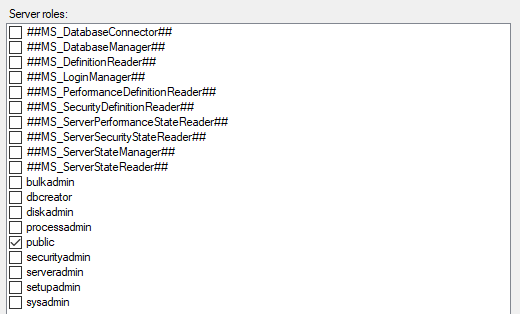
3.1 Fixed Server Roles
SQL Server comes with predefined roles. Also, the available fixed server roles can vary depending on the SQL Server version. Here are some important ones:
| Role | Description |
|---|---|
| sysadmin | Can do anything. Bypasses all security checks. |
| securityadmin | Can manage logins and reset passwords. (High risk) |
| serveradmin | Can change server configurations (memory, threads, etc.). |
| processadmin | Can kill running sessions. |
| public | The default role for everyone. (Do not grant elevated privileges here.) |
3.2 Managing Server Role Membership
Note: Do not use the deprecated sp_addsrvrolemember. Use ALTER SERVER ROLE.
-- Make 'AppUserLogin' a System Administrator
ALTER SERVER ROLE sysadmin ADD MEMBER AppUserLogin;

-- Remove the privilege
ALTER SERVER ROLE sysadmin DROP MEMBER AppUserLogin;
GO
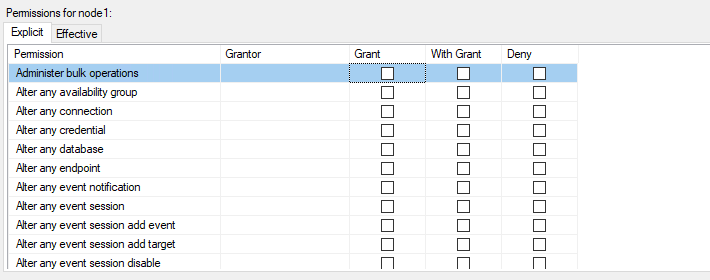
3.3 Server-Level Permissions
You can grant specific rights without making someone a full admin. If you want targeted permissions instead of fixed server roles, use this approach.
-- Allow a login to view DMVs for performance troubleshooting
GRANT VIEW SERVER STATE TO AppUserLogin;
GO
SSMS (GUI):
STEP 4. Authorization (Database Level)
Even if you have a login, you cannot access sampleDB unless you are mapped to a user in that database.
4.1 Creating Database Users
USE sampleDB;
GO

-- Map the login 'AppUserLogin' to a user named 'AppUser'
CREATE USER AppUser FOR LOGIN AppUserLogin;
GO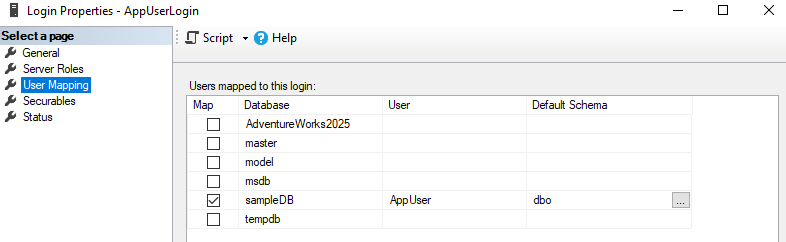
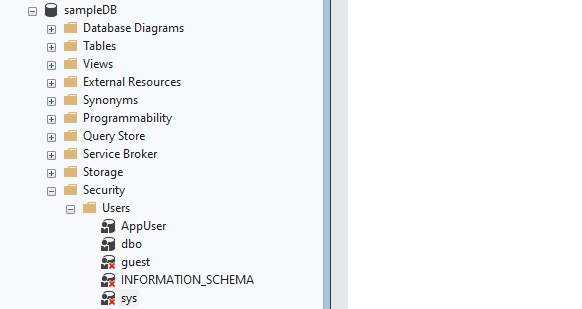
4.2 Special Users: dbo and guest
- dbo (Database Owner): Implies full control inside the database. If you are
sysadmin, you enter every database asdboautomatically. - guest: Allows logins without a mapped user to connect. Security warning: keep
guestdisabled unless you have a very specific requirement.
In SSMS, you can check mapped users under Database → Security → Users.
4.3 Contained Database Users (When Useful)
A contained database user can authenticate directly at the database level (no server login required). This can simplify some migration scenarios, but you must manage credentials carefully.
-- Enable containment at the database level
ALTER DATABASE sampleDB SET CONTAINMENT = PARTIAL;
GO

USE sampleDB;
GO

-- Create a contained user (no server login)
CREATE USER ContainedAppUser
WITH PASSWORD = 'AnotherStrongPassword!2025';
GO
STEP 5. Database Roles & Object Permissions
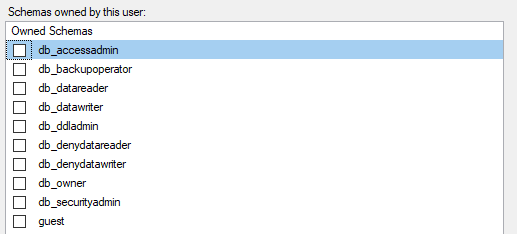
5.1 Fixed Database Roles
Common roles used to simplify permission management:
db_owner: Full control of the database.db_datareader: Can SELECT from all user tables/views.db_datawriter: Can INSERT/UPDATE/DELETE on all user tables.db_ddladmin: Can create/alter/drop many objects (DDL).
5.2 Custom Database Roles
Often, fixed roles are too broad. Create your own:
USE sampleDB;
GO

-- 1. Create a custom role
CREATE ROLE SalesTeam;

-- 2. Add our user to this role
ALTER ROLE SalesTeam ADD MEMBER AppUser;
GO
5.3 GRANT, DENY, REVOKE
The hierarchy of permissions is: DENY > GRANT. Therefore, if both GRANT and DENY are set, DENY takes precedence.
USE sampleDB;
GO

-- 1. Create a test table
CREATE TABLE dbo.Salaries (EmpName varchar(50), Amount int);

-- 2. GRANT: Allow SalesTeam to read
GRANT SELECT ON dbo.Salaries TO SalesTeam;

-- 3. DENY: Explicitly block AppUser from updating
DENY UPDATE ON dbo.Salaries TO AppUser;
GO
5.4 How to Check “Effective Permissions”
When troubleshooting security, you often need to answer: “What can this user actually do right now?”
-- 1) Show server-level permissions for a login
SELECT *
FROM sys.server_permissions
WHERE grantee_principal_id = SUSER_ID('AppUserLogin');

-- 2) Show database-level permissions for a user
USE sampleDB;
GO
SELECT dp.name AS principal_name,
       perm.state_desc,
       perm.permission_name,
       perm.class_desc,
       OBJECT_NAME(perm.major_id) AS object_name
FROM sys.database_permissions AS perm
JOIN sys.database_principals AS dp
  ON perm.grantee_principal_id = dp.principal_id
WHERE dp.name = 'AppUser'
ORDER BY perm.class_desc, perm.permission_name;
GO
STEP 6. Advanced Security (Schemas & Views)
6.1 Using Schemas for Security
A schema acts as a security container (like a folder). Instead of granting permissions on 100 tables individually, grant permissions on the schema.
USE sampleDB;
GO

-- 1. Create schema
CREATE SCHEMA HR;
GO

-- 2. Move table into schema
ALTER SCHEMA HR TRANSFER dbo.Salaries;

-- 3. Grant permission on the schema
-- The user can now access ANY table inside the HR schema (existing or new)
GRANT SELECT ON SCHEMA::HR TO SalesTeam;
GO
6.2 Security via Views
You can hide sensitive columns by creating a view and granting access only to that view.
USE sampleDB;
GO

-- Table has 'Amount' (sensitive)
-- View selects only 'EmpName'
CREATE VIEW HR.V_PublicSalaries AS
SELECT EmpName FROM HR.Salaries;
GO

-- Grant access to the view ONLY
-- Do NOT grant access to the underlying HR.Salaries table
GRANT SELECT ON HR.V_PublicSalaries TO AppUser;
GO
6.3 Stored Procedures as a Security Boundary
A common enterprise pattern is:
- Deny direct table access to application users
- Grant
EXECUTEon stored procedures - Let procedures perform controlled access (and validations) to the underlying tables
USE sampleDB;
GO

-- Create a procedure that exposes only what the app needs
CREATE OR ALTER PROCEDURE HR.usp_GetPublicSalaries
AS
BEGIN
    SET NOCOUNT ON;

    SELECT EmpName
    FROM HR.Salaries;
END
GO

-- Remove direct table access (example)
REVOKE SELECT ON HR.Salaries FROM SalesTeam;
GO

-- Deny SELECT access directly (example)
DENY SELECT ON HR.Salaries TO AppUser;
GO

-- Grant execute only
GRANT EXECUTE ON HR.usp_GetPublicSalaries TO SalesTeam;
GO
Log in to the SQL Server instance and try to SELECT from the table:
Msg 229, Level 14, State 5, Line 1
The SELECT permission was denied on the object 'Salaries', database 'sampleDB', schema 'HR'.
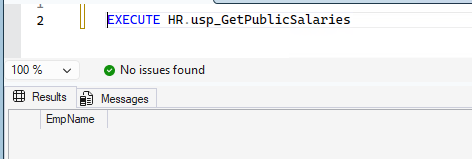
Log in to the SQL Server instance and execute the stored procedure:
STEP 7. Troubleshooting: Who Can Do What?
7.1 Find Permissions from System Catalog Views
These views are your “source of truth” when security gets confusing:
-- Server principals (logins)
SELECT name, type_desc, is_disabled
FROM sys.server_principals
WHERE type IN ('S','U','G')
ORDER BY type_desc, name;

-- Server role membership
SELECT r.name AS role_name, m.name AS member_name
FROM sys.server_role_members rm
JOIN sys.server_principals r ON rm.role_principal_id = r.principal_id
JOIN sys.server_principals m ON rm.member_principal_id = m.principal_id
ORDER BY r.name, m.name;

-- Database principals (users/roles)
USE sampleDB;
GO
SELECT name, type_desc, authentication_type_desc
FROM sys.database_principals
WHERE name NOT IN ('dbo','guest','INFORMATION_SCHEMA','sys')
ORDER BY type_desc, name;

-- Database role membership
SELECT r.name AS role_name, m.name AS member_name
FROM sys.database_role_members rm
JOIN sys.database_principals r ON rm.role_principal_id = r.principal_id
JOIN sys.database_principals m ON rm.member_principal_id = m.principal_id
ORDER BY r.name, m.name;
GO
7.2 Common “Permission Denied” Patterns
When you see errors like The SELECT permission was denied, check these first:
- A DENY exists somewhere: DENY overrides GRANT.
- Wrong database context: The user exists in one database, but not the one you are connected to.
- Broken ownership chain: Owners differ between the view/procedure and the underlying objects.
- Orphaned user: A user exists, but mapping to the login is broken after restore/migration.
7.3 Minimal Permissions vs. Broad Roles
A simple rule: prefer specific permissions over broad roles.
- Instead of
db_owner, grant only what the app needs (oftenEXECUTEon procedures + narrow SELECT rights). - Instead of
sysadmin, use targeted server permissions (for example,VIEW SERVER STATEfor monitoring). - Separate duties: application accounts should not be DBAs.
This concludes the comprehensive guide on SQL Server Security.
Continue learning: To practice permission design with guided labs, browse Udemy and search for SQL Server administration courses with exercises on logins, database users, roles, and least-privilege access. For hands-on practice with SQL Server queries and database fundamentals, explore DataCamp.